Nov 2026 ChessZCam for Android is now on Google Play. Free Viewer Mode; optional 14-day Mobile trial. Get it on Google Play →

ChessZCam Studio · Windows

Record at the board.Finish in Studio.

Film over-the-board (OTB) chess with your phone or a camera you like. ChessZCam Studio reads moves from the footage, helps you review the game and renders an overlay video ready to share.

StockfishPGN16:9 · 9:16
Baca dalam Bahasa Melayu →
ChessZCam Studio / Review & export
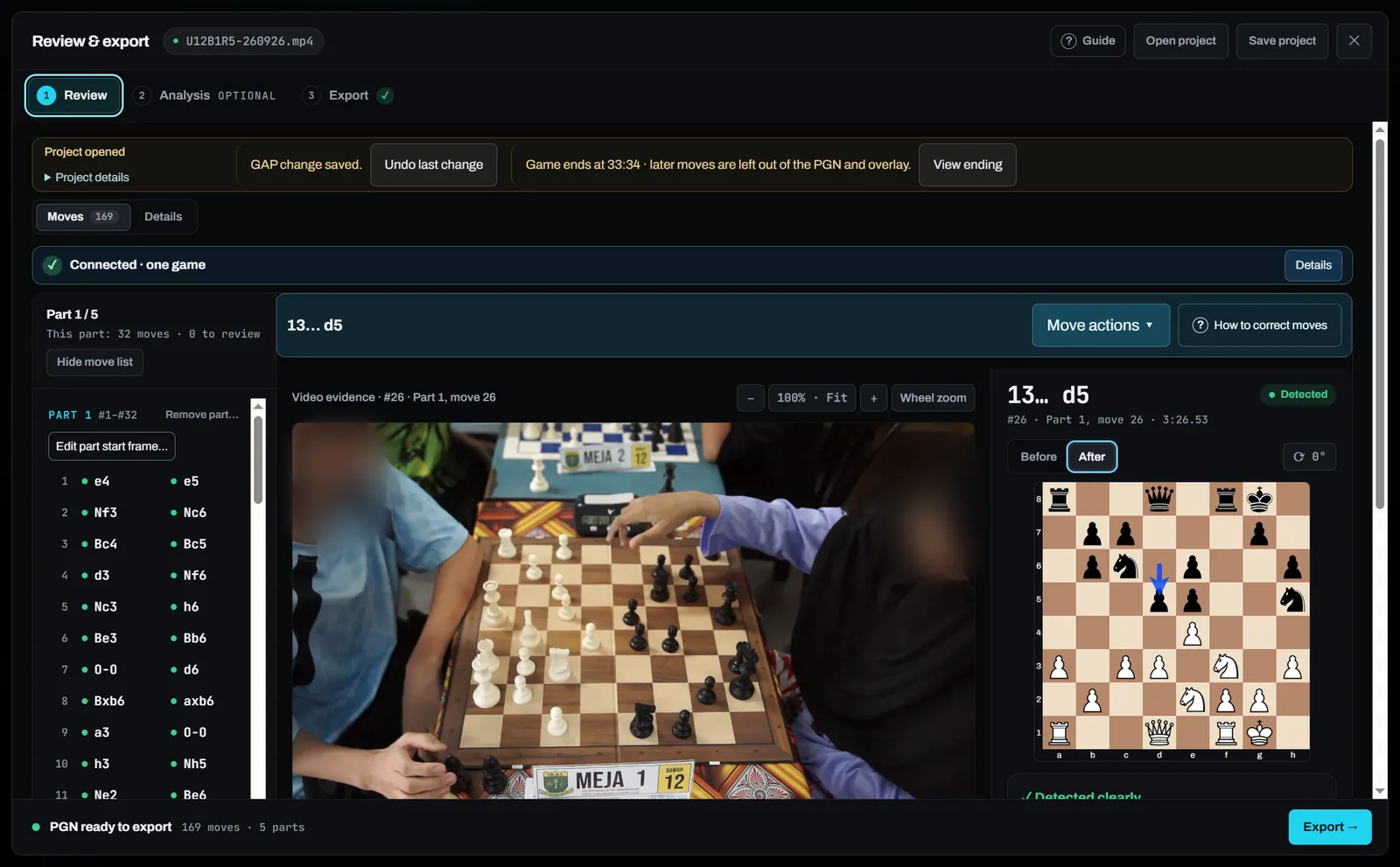
Studio Review & export shows match footage, the detected move list and the position on a digital board
Actual Studio screen reviewing an OTB game.

Phone → Windows

When your phone needs a hand

If your entry-level Android phone scans slowly or live detection is inconsistent, use Record Game Video at the board. Let Studio handle detection, engine analysis and rendering after the game.

01 · At the board

Capture the footage and game details

  • Open Record Game Video on Android. Enter player names and colors, event, venue, round, board number, time control and notes in Game. Check the camera and recording quality before you start.
  • Use a sturdy phone mount. Start at an angle between 45° and near overhead, with all 64 squares and four corners in view. Check that tall pieces leave the squares behind them visible.
  • Record the game with audio. When you stop, add the result and keep the original footage.

See the guide to camera angles and lighting →

Actual Analyze Video screen with calibration markers on the four board corners
Example of aligning the board corners after importing footage into Studio.

02 · Phone and PC

Bring your footage and any review work

If Analyze Video is too slow on your phone, go straight to path A. If you've already detected or corrected moves, path B brings review data such as moves, corrections, saved analysis and overlay settings into Studio.

Transfer the original video separately using path A. After opening the review, link the original video under Details if prompted so Studio can match the footage to the saved moves and timings.

If you're copying only the video, enter the game details again in Studio as needed.

A · Original footage

Copy the original video file from your phone or memory card to the PC via a shared local network folder, USB cable or card reader. Open it in Analyze Video to start detection.

B · Existing review data

On the same Wi-Fi or LAN, open Transfer review in Studio and select Share from Studio. Scan the QR code or paste the link on Android, select Send this review, then choose Check received review and Open received review in Studio.

03 · In Studio

Detect the moves, then review with Stockfish

For a new scan, open Analyze Video, align the four corners of the board in the footage and lock them before scanning. If you imported an existing review, pick up from that project.

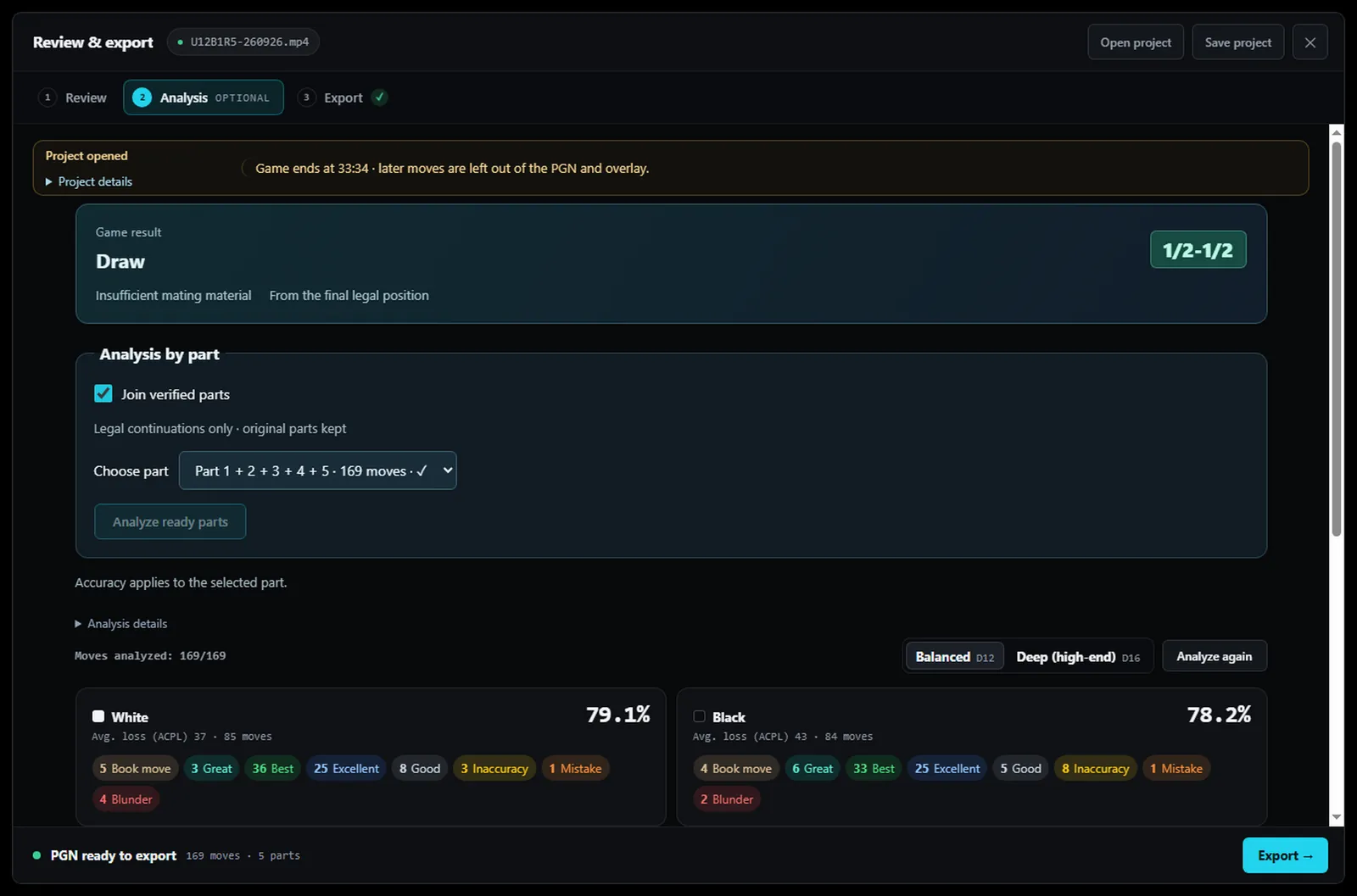
Check moves against the video frames, verify promotions and repair gaps or missed moves. Once the sequence is reviewed, run Stockfish for position evaluations, suggested moves and move grades.

Actual Stockfish analysis screen in Studio with move evaluations and an accuracy chart
Actual Stockfish analysis screen in Studio.

04 · Ready to share

Save the PGN and render the video

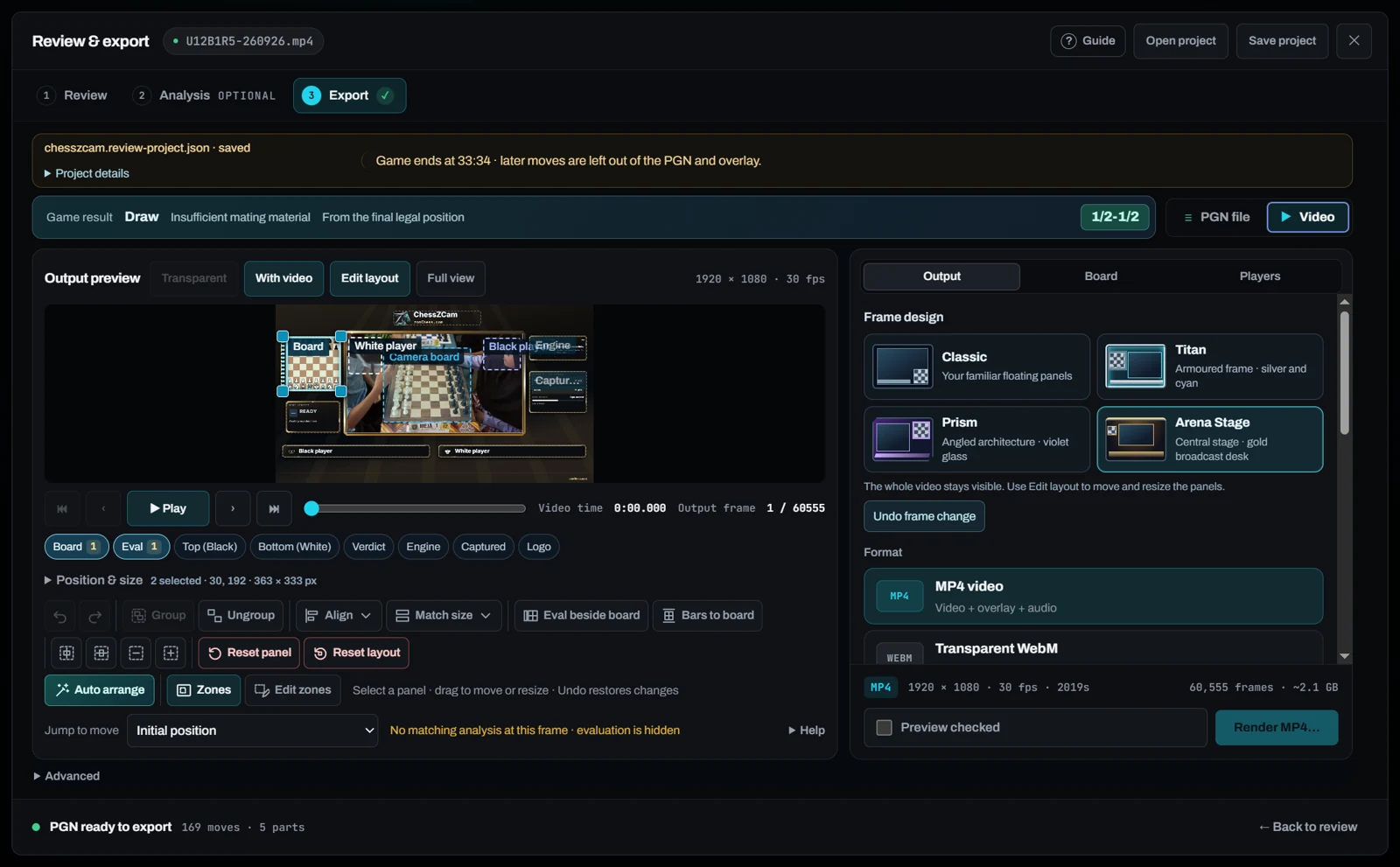
Export a PGN to revisit the game or share with a coach. In Export, choose video, then size and position the digital board, player names, moves and evaluation bar with a template or your own layout.

See landscape and portrait examples →

Studio video export with a layout preview and the Classic, Titan, Prism and Arena Stage templates
Actual Studio export template and layout controls.
Actual Studio chess overlay renders in landscape and portrait
Two Studio renders from the same game. Player names are fictional.

Layouts, themes and templates

One game, two video formats

Both the Android app and Studio can export overlay video. For longer footage and more complex layouts, a more capable PC will usually process and render faster and more reliably. Performance depends on hardware, resolution and settings.

16:9
Landscape for full-game breakdowns on YouTube
9:16
Portrait for Shorts, Reels and TikTok

See demos and the creator guide →

From camera to Studio

Use the camera that suits your setup

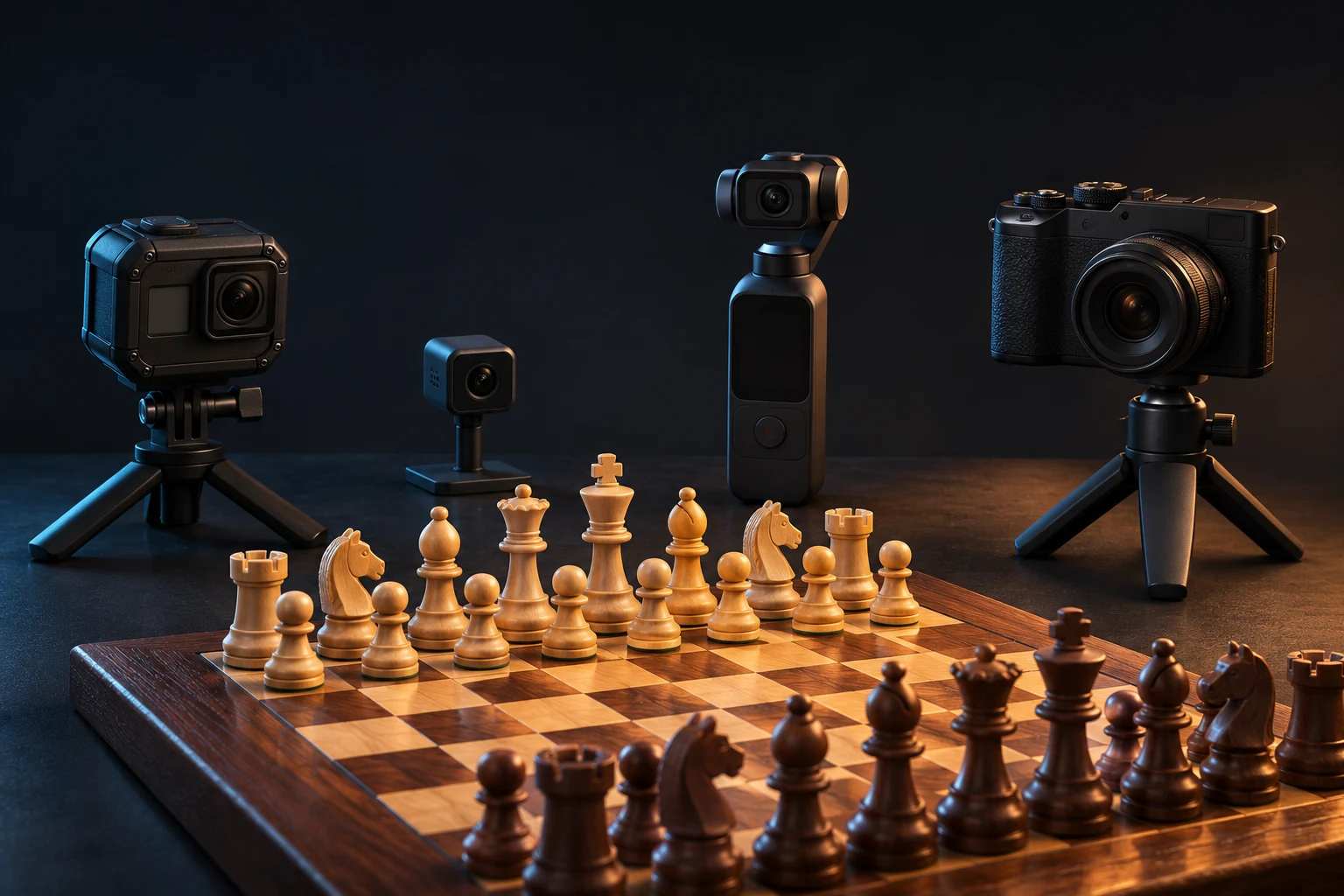
An older phone, a tiny camera or a professional camera can all work. Start with the camera you already have if it gives you a clear view of the whole board and produces a file Studio can open. The models below are examples from several brands.

Illustration of an action cam, mini cam, pocket gimbal camera and mirrorless camera beside a wooden chessboard
Illustration of several camera types for OTB recording.

Test before the game. Record a short clip on a firm mount. Keep zoom and angle fixed, with every square and all four corners clear. Fixed framing helps Corner Lock maintain board alignment.

Copy the footage to Windows and open it in Analyze Video. If the file is hard to open, try converting it to MP4 (H.264) while keeping the original framing and timing. Recording guide →

ChessZCam Live

Studio can also detect moves for vMix

Choose a camera, capture card or virtual camera feed in Studio. Studio sends the board state to ChessZCam Live, and vMix displays the digital board and evaluations over the camera feed.

vMix & OBS setup guide →

ChessZCam Studio

Bring the story from the board to the screen

Share the turning point as a short clip or break down the full game. Make the action at the board as easy to follow as online chess.

Updated