Nov 2026 ChessZCam can now publish live games to zonChess Live (beta). Free 14-day trial on Windows and Android. Download →

ChessZCam Live · setup guide · interactive

Your board, live on air. With the moves, the eval and the names.

Most people film a chess game and stream the camera. With ChessZCam Live, the same stream gets a digital board, an evaluation bar, Stockfish verdicts and the players' names, drawn as a transparent layer over your camera in vMix or OBS. Here is the whole setup, wire by wire.

Updated

vMix or OBS No electronic board Local network, no cloud
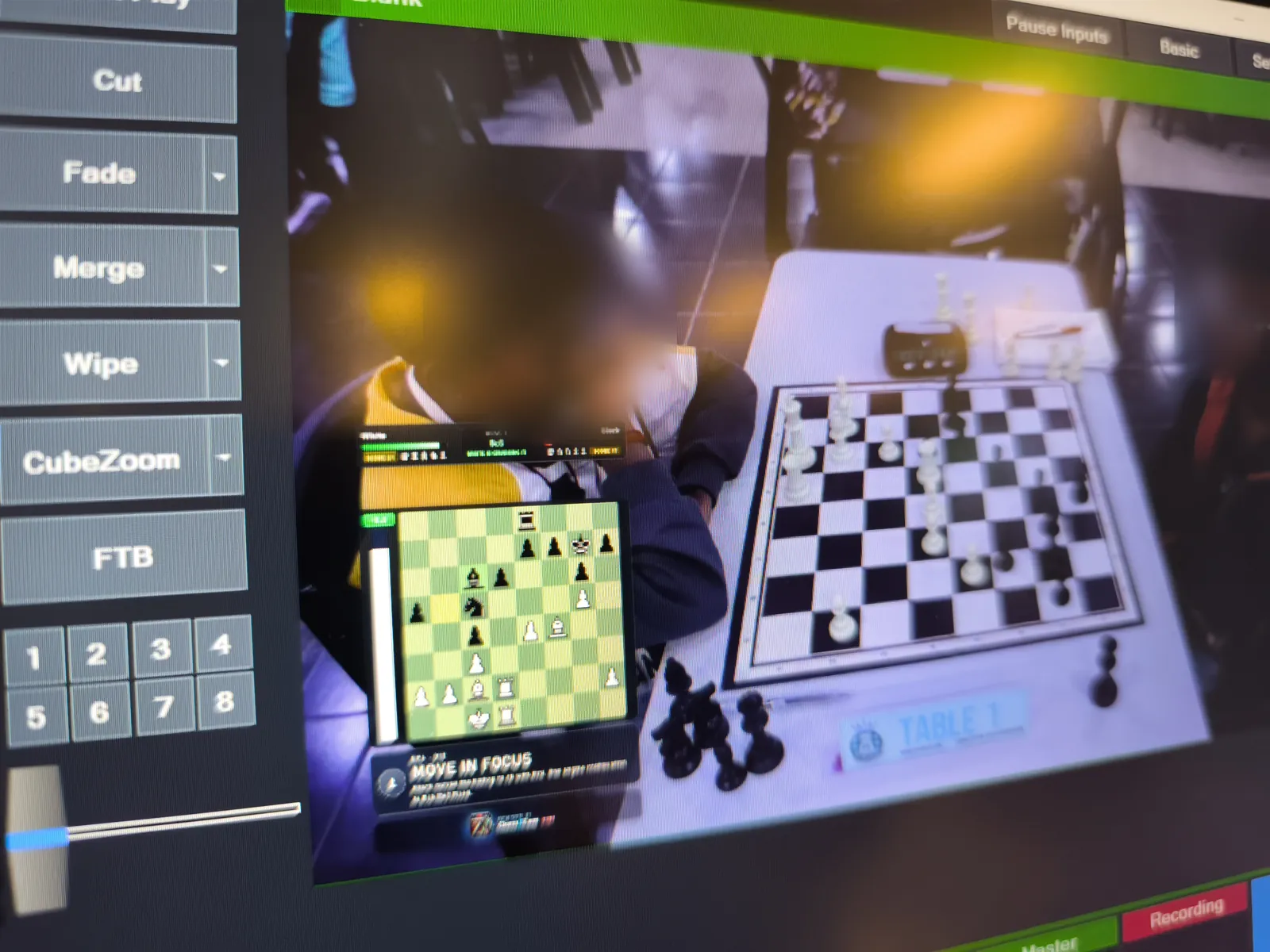
vMix showing a live tournament board with the ChessZCam Live overlay: digital board, eval bar and a Move in focus card; players are blurred

In short: how a ChessZCam live overlay works

Something reads the board, ChessZCam Live turns it into graphics, and vMix or OBS puts those graphics on top of your camera. The reader is either ChessZCam Studio on the PC, reading the same camera you broadcast through a virtual camera, or an Android phone with ChessZCam in Broadcast, sending moves over Wi-Fi. ChessZCam Live runs on the PC, analyses with Stockfish and serves a transparent overlay at http://127.0.0.1:8787/overlay. Add that address as a Browser Source above your camera and your stream shows the board, the eval, the verdicts and the names.

Two ways to set it up

Choose your route. Then follow the wires.

Pick a route, then work through the steps. Each step lights up its part of the diagram, and each has one small thing to try. Everything runs inside this page.

Swipe the diagram sideways →picture and moveswirelessoverlay layer

    A1 · On the board

    Mount the camera over the board.

    Use a firm tripod or arm beside the board, out of the players' reach. Look down at the board, not across it.

    • 45° to 90° down, all four corners and a small margin in view.
    • Lock focus and exposure, and keep the zoom fixed all game.
    • Follow the recording guide: the same rules make detection reliable.
    Camera angleBoard fully visible

    A2 · Wireless video

    Send the picture to your desk.

    A wireless HDMI transmitter sits on the camera's HDMI output; its receiver sits near the PC. No cable across the playing area, no tripping over it.

    • Set the camera's HDMI output to clean (no menus or focus marks on screen).
    • 1080p at 25 or 30 fps is plenty.
    • Short distance? An HDMI cable works just as well.

    Wireless HDMISignal
    TransmitterReceiver
    No signalLinked · 1920×1080 · 30 fps

    A3 · Into the PC

    Turn HDMI into a camera the PC understands.

    Plug the receiver's HDMI into a UVC capture card and the card into a USB port. UVC means Windows treats it like a webcam, so every app can see it. Some receivers have USB output built in.

    • Use a USB 3 port for 1080p.
    • Check the picture once in the Windows Camera app if you are unsure.

    DevicesUSB Video
    No new deviceUSB Video device · 1920×1080 · ready

    A4 · Your production software

    Make it the main video, then share it.

    Add the capture card as a camera input. This is the picture your viewers see. Then turn on the virtual camera output, so ChessZCam Studio can read exactly the same picture.

    • OBS Studio: add a Video Capture Device source, then press Start Virtual Camera.
    • vMix: add the camera input, then turn on its virtual camera output.

    vMix / OBSCamera inputVirtual camera
    Program: no inputProgram: board camera · Virtual camera: on

    A5 · ChessZCam Studio

    Point Studio at the virtual camera.

    Open ChessZCam Studio and choose Broadcast. In the camera list, pick the virtual camera, not the capture card. Studio accepts webcams, capture cards and OBS Virtual Camera.

    ChessZCam Studio · BroadcastCamera
    No camera picture yetCamera: virtual camera · board in view

    A6 · Read the board

    Corners, Lock, Start.

    Tap Corners, check that each marker sits on a board corner, tap Lock, then Start. From here Studio reads every move from the live picture.

    A7 · ChessZCam Live

    Link Studio to ChessZCam Live.

    Open ChessZCam Live on the same PC. In Setup (F4) copy the pairing link. In Studio's Broadcast tap Link, then Paste link & connect. If Windows asks, allow port 8787 in the firewall.

    • Studio, ChessZCam Live and any phone must run the same ChessZCam build.

    ChessZCam Live · SetupLinked
    Waiting for a detector…PC OK · Overlay linked

    A8 · The overlay

    Players, event and style.

    Open Overlay (F3) in ChessZCam Live. Choose a style (Classic, Obsidian HUD, Royal Gold or Neon Carbon), enter the players and the event, and set the lower third cards. Nothing goes on air until you press Push to overlay.

    • Lower third cards: each player, both players, tournament and round, time control, venue and time.
    • Zones or free layout, groups, and up to 20 saved presets.

    ChessZCam Live · OverlayOn air
    Ctrl+Enter

    A9 · Back into vMix or OBS

    Put the overlay on top as layer 1.

    Add the overlay as a Browser Source over your main video.

    • vMix: Add Input → Browser, URL http://127.0.0.1:8787/overlay, turn Transparent on, and use it as an overlay above the camera.
    • OBS: add a Browser source with the same URL at 1920×1080, above the camera source.
    • Open the URL in a browser first to check it.

    Add Input · BrowserOn air
    http://127.0.0.1:8787/overlay
    Layers: cameraLayers: camera + ChessZCam overlay (layer 1)

      B1 · On the board

      Put the phone over the board.

      An Android phone with ChessZCam on a firm stand or arm, looking down at the board. The phone is only the detector: viewers can watch any other camera.

      • 45° to 90° down, all four corners in view.
      • Keep it on a charger for long rounds.
      • The app runs in landscape.

      Phone angleBoard fully visible

      B2 · One local network

      Phone and PC on the same Wi-Fi.

      Use the venue Wi-Fi, a phone hotspot or a small router. Start ChessZCam Live on the PC and allow port 8787 in the Windows firewall (Live offers to add the rule).

      NetworkSame Wi-FiPort 8787

      B3 · Pair the phone

      Scan, paste, connected.

      In ChessZCam Live open Setup (F4). Scan the pairing QR with the phone and copy the link. In the app open Broadcast, tap Link, then Paste link & connect. Address, port and pairing code fill in by themselves.

      ChessZCam · Broadcast · LinkLinked
      Not linkedPC 192.168.x.x · port 8787 · code ✓

      B4 · Read the board

      Corners, Lock, Start.

      On the phone, check the four corners, Lock the board and tap Start. The status line shows PC OK · Overlay linked when moves are reaching the overlay.

      B5 · The overlay

      Players, event and style.

      Same as route A: in ChessZCam Live open Overlay (F3), choose a style, enter the players and event, then Push to overlay.

      ChessZCam Live · OverlayOn air
      Ctrl+Enter

      B6 · vMix or OBS

      Overlay on top of any camera.

      Add http://127.0.0.1:8787/overlay as a Browser Source above your production camera. No production camera? The full-screen styles work on their own as a clean digital board.

      Add Input · BrowserOn air
      http://127.0.0.1:8787/overlay
      Layers: cameraLayers: camera + ChessZCam overlay (layer 1)

      What the viewer sees

      Two layers. One broadcast.

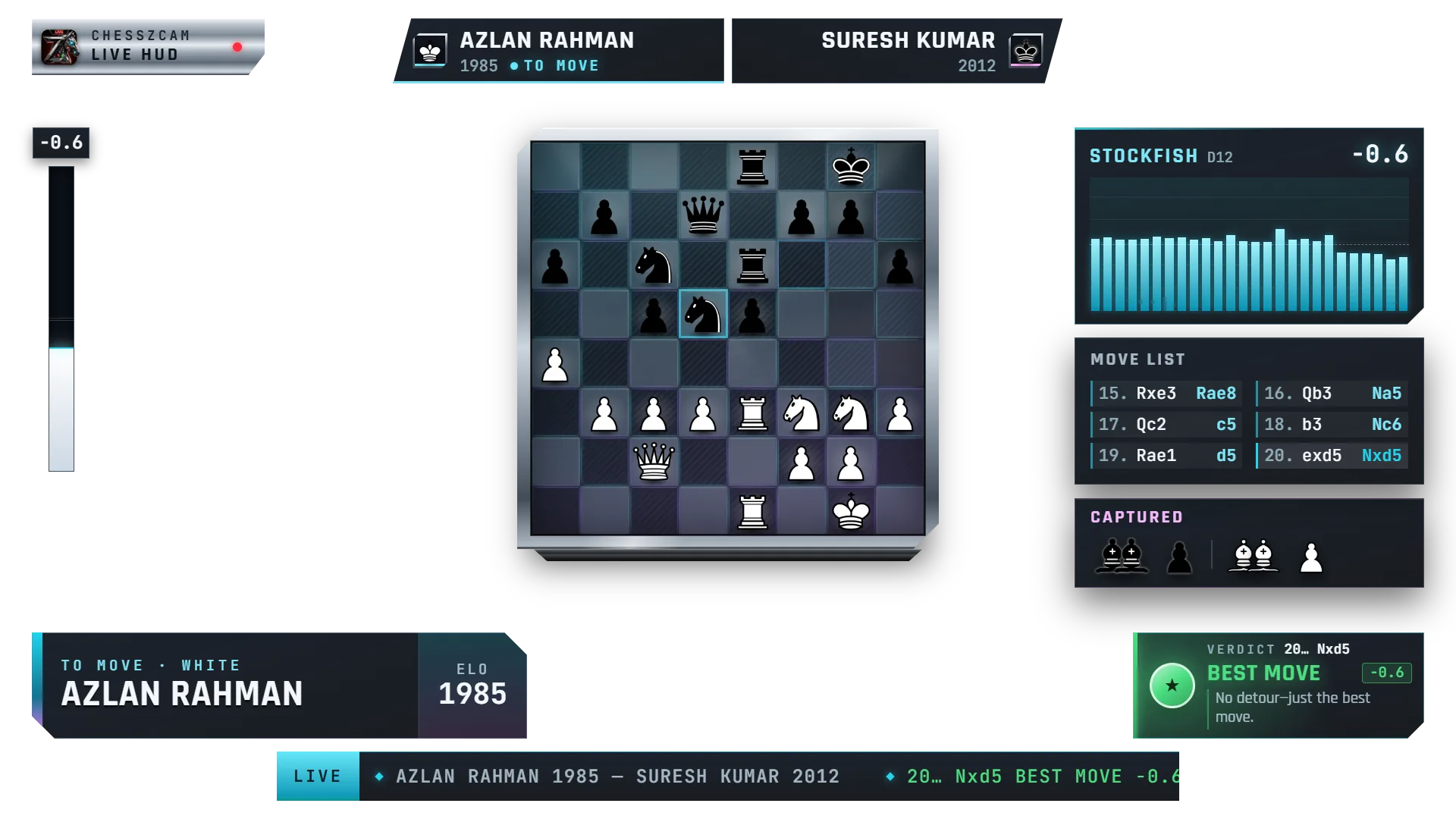
      Underneath, the real board from your camera. On top, layer 1: the ChessZCam overlay with a transparent background, so only the graphics cover the picture. Switch the layer off and on, and try the styles.

      Transparent ChessZCam Live overlay in the Obsidian HUD style, ready to sit over a camera picture in vMix or OBS
      LIVEAzlan vs Suresh

      Real ChessZCam Live overlay renders with demo names. The camera layer is drawn for this page. The lower third shows the names you typed in the steps.

      vMix / OBS layers
      1ChessZCam overlayBrowser Source · transparent
      0Board cameracapture card · main video
      • Digital board that follows every confirmed move.
      • Eval bar and Stockfish panel, analysed on the PC.
      • Verdicts from Book move to Blunder, with a splash for brilliant moves and blunders.
      • Names, event and lower third cards you control.

      The idea most people miss

      One camera can do both jobs.

      You do not need a second camera just for detection. A capture card can usually be opened by one program at a time, so let vMix or OBS own it, and let them share the picture as a virtual camera. Studio reads that, and your stream and your detection see exactly the same board.

      Prefer to keep the PC light? Route B moves detection onto a phone and leaves the PC to ChessZCam Live and your production software.

      Studio opens the capture card directly while vMix or OBS also needs it: one of them gets “device busy”.
      vMix or OBS opens the capture card and shows it as the main video.
      The virtual camera passes the same picture on, frame for frame.
      Studio reads the virtual camera and sends the moves to ChessZCam Live.
      ChessZCam Live's overlay comes back into vMix or OBS as layer 1.

      Before you go on air

      The ten-minute checklist.

      Camera

      Firm stand, 45°–90° down, four corners in view, focus and exposure locked.

      Same build

      Studio, ChessZCam Live and every phone on the same ChessZCam build.

      Network

      Same Wi-Fi, hotspot or LAN for phones. Port 8787 allowed in the firewall.

      One board, one Live

      One ChessZCam Live follows one detecting source and one board at a time.

      Transparent on

      In vMix, the Browser input must be Transparent. Check the URL in a browser first.

      Push to overlay

      Names and style changes reach air only after Push to overlay.

      Know Hold & correct

      If a move is missed, press H, fix the draft board, Apply & resume.

      Power

      Chargers for the camera, the transmitter and the phone. Long rounds drain batteries.

      In a real hall · 19 September 2026

      This setup has already run at a tournament.

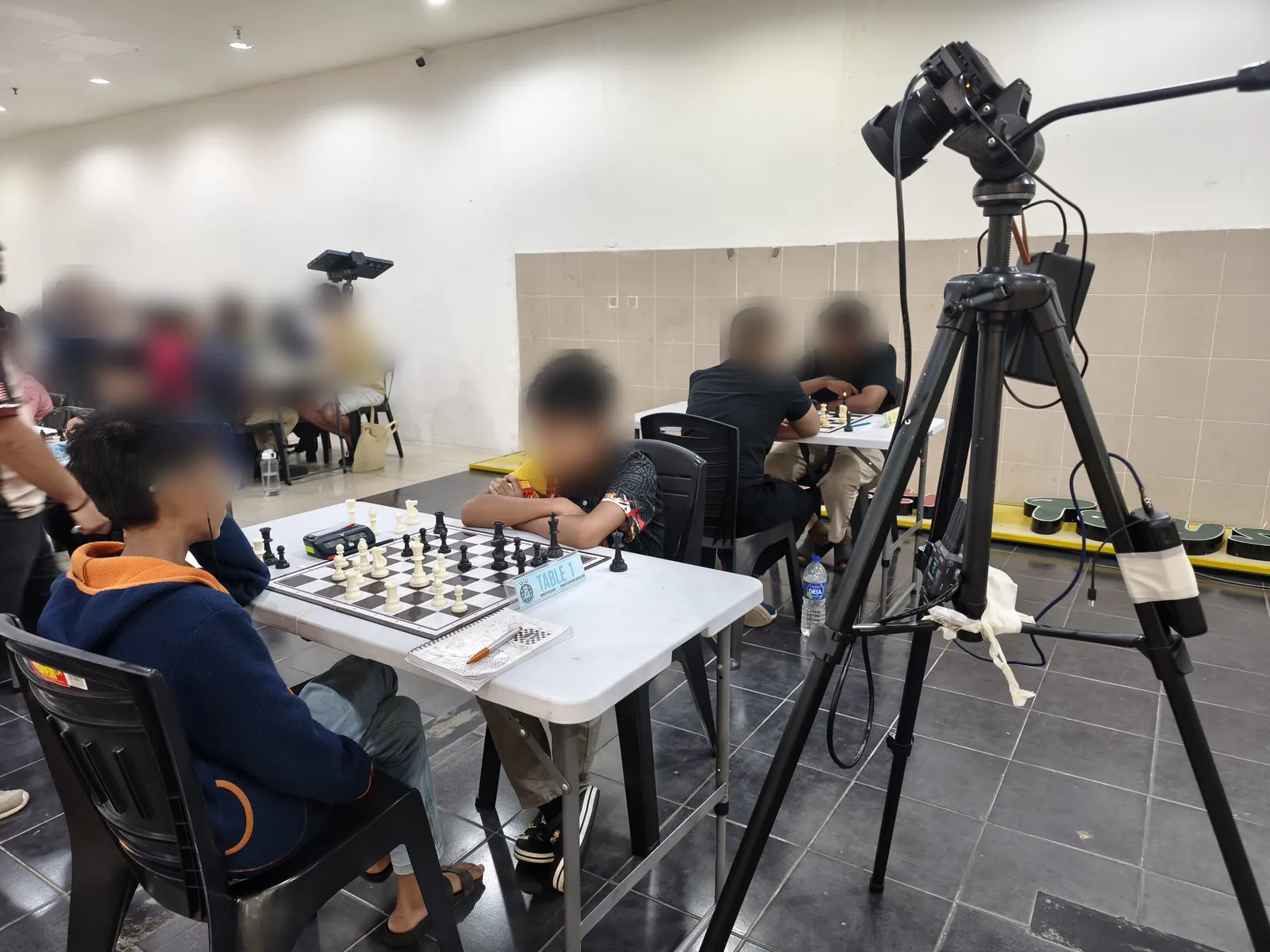
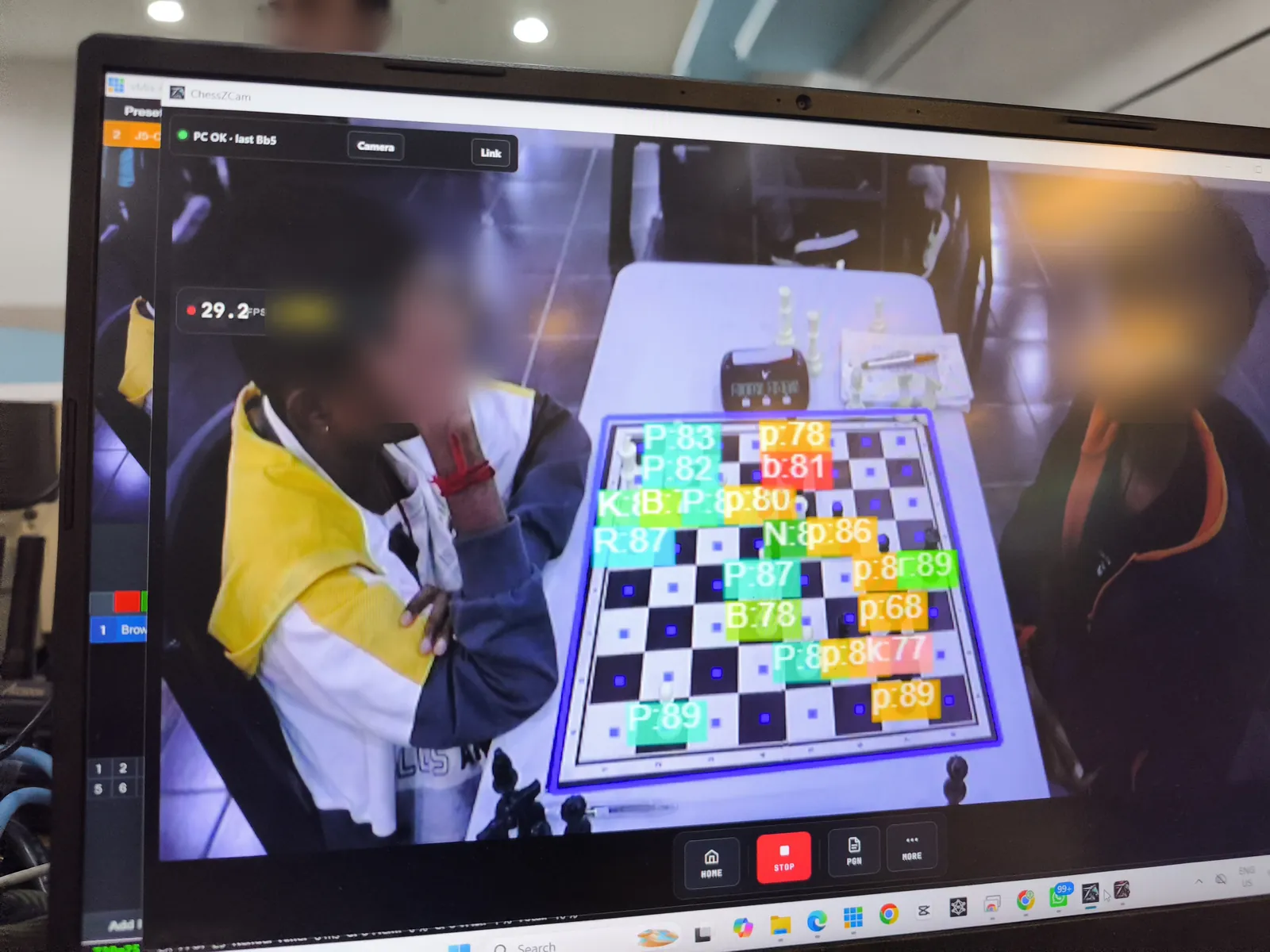
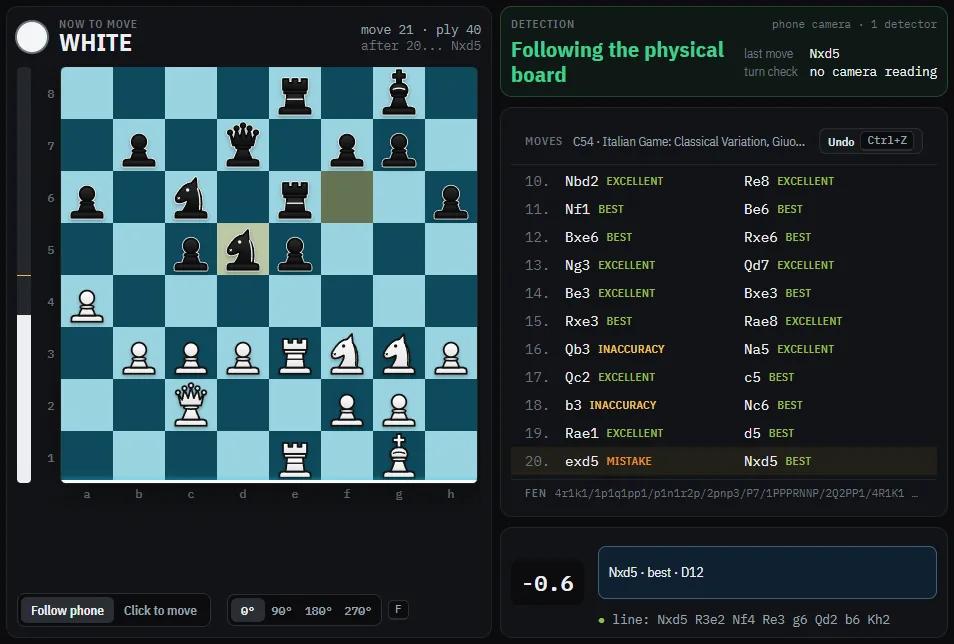
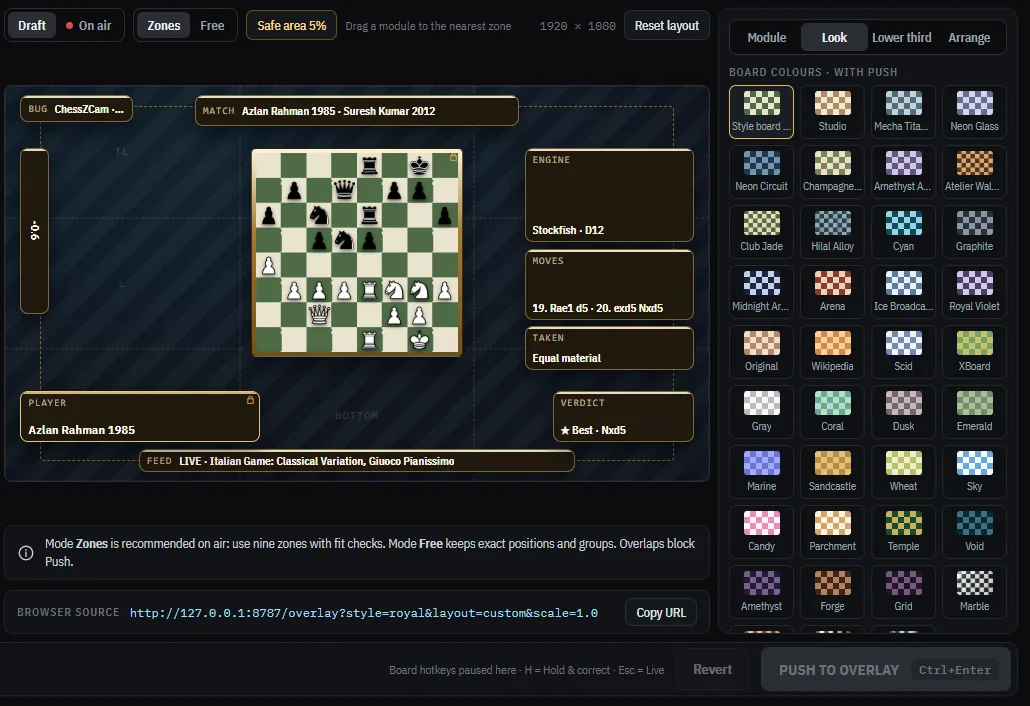
      From our test at Lotus's Kulim: a camera with a wireless transmitter beside Table 1, ChessZCam on the production PC reading the same picture, and vMix putting the overlay on air. Faces are blurred. Click a picture to enlarge it.

      A camera on a tall tripod beside Table 1 at a tournament, with a wireless video transmitter and a power bank taped to the stand; players are blurred
      Camera + wireless transmitterOn a tripod beside the board, out of the players' reach.
      ChessZCam on the production PC detecting the pieces from the hall camera, with the status PC OK and the last move Bb5; players are blurred
      ChessZCam reads the same picture“PC OK · last Bb5”: moves are reaching ChessZCam Live.
      vMix with the ChessZCam overlay above the hall camera: digital board, eval bar and a Move in focus card; players are blurred
      Overlay on air in vMixThe overlay layer above the camera input.
      ChessZCam Live operator console with the board, the move list and the Stockfish line
      The ChessZCam Live consoleProgram monitor, moves and Hold & correct.
      ChessZCam Live Overlay Designer: styles, modules and the overlay preview
      Overlay DesignerStyle, layout and lower thirds, then Push.
      The vMix production at the tournament with the camera inputs and the ChessZCam overlay input
      The production deskvMix input 1 “Browser 127.0.0.1” (the overlay) and input 2, the capture card.

      FAQ

      Live setup questions.

      Do I need ChessZCam Studio for a live overlay?

      No. With the phone route, an Android phone running ChessZCam in Broadcast reads the board and sends the moves straight to ChessZCam Live on the PC. Studio is useful when you want one production camera to give both the broadcast picture and the detection.

      Why go through a virtual camera?

      A capture card can usually be opened by one program at a time. vMix or OBS takes the capture card for the broadcast and shares the same picture as a virtual camera, which ChessZCam Studio can then read. One camera gives you both the picture and the moves.

      Does it work in both vMix and OBS?

      Yes. The overlay is a Browser Source at http://127.0.0.1:8787/overlay. In vMix, turn Transparent on. In OBS, add a Browser source and place it above the camera source.

      Do I need the internet?

      No. Studio and ChessZCam Live talk on the same PC, and a phone talks to the PC over the same Wi-Fi, hotspot or LAN. You only need the internet for your own stream.

      How many boards can one ChessZCam Live follow?

      One. One ChessZCam Live follows one detecting source and one board at a time.

      What happens if a move is missed on air?

      The operator presses Hold & correct (H) in ChessZCam Live, fixes the position with the fastest fix or the draft board, then presses Apply & resume. A small camera shift is realigned by itself, and Align on the PC realigns a larger one.

      Which licence do I need?

      The free 14-day ChessZCam Studio trial includes ChessZCam Live. After the trial, Live needs the Creator Live package.

      Your first live board

      Try it on one board this weekend.

      The free 14-day ChessZCam Studio trial includes ChessZCam Live. No code, no payment details. Start with one featured board and grow from there.